
AI Christmas Desktop Wallpaper: 16 Prompts by Mood
Create an AI Christmas Desktop Wallpaper that leaves room for icons, taskbars, and docks. Explore 16 original prompts, framing tips, and aspect-ratio guidance.
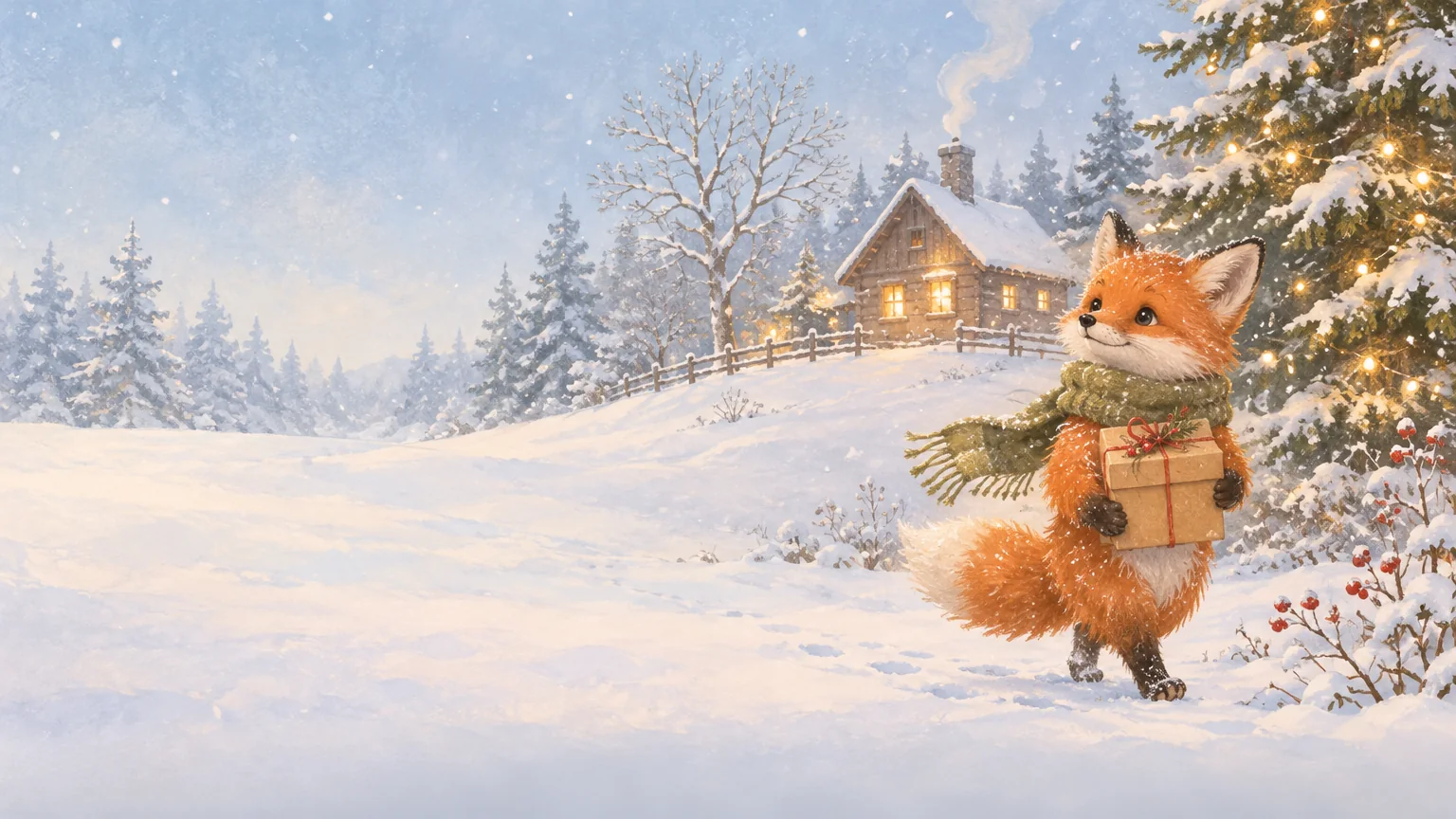
AI Christmas Desktop Wallpaper works best when it feels festive without competing with the work on your screen. Start by reserving a calm area for desktop icons, placing the main subject away from the taskbar or dock, and matching the image’s aspect ratio to your display.
What's new on this page
- 2026-11-26 — Page published. Added original Christmas desktop wallpaper prompts with screen-ratio and icon-space tips.
Compose for the desktop, not just the image
A wallpaper is a working surface as well as a picture. Before generating, decide where your icons tend to sit and which edge holds the taskbar or dock. Keep high-contrast details, faces, and focal objects clear of those zones; use quieter color and texture there instead.
For a conventional landscape display, use 16:9. Choose 16:10 if that matches your monitor or laptop screen. For an ultrawide display, use your screen’s actual ratio where the tool allows it; 21:9 is a common starting point, but ultrawide screens vary. If you have a resolution setting, select the closest available option at or above your display’s native resolution, then check the crop before setting the image as wallpaper.
| Display shape | Prompt framing cue | Practical placement |
|---|---|---|
| 16:9 | “wide landscape, balanced central composition” | Leave one side open for icons; keep detail above the bottom edge. |
| 16:10 | “slightly taller landscape, generous upper breathing room” | Give the scene extra vertical space without raising the focal point too high. |
| Ultrawide | “panoramic, very wide composition, subjects grouped off-center” | Spread secondary details across the width; protect the dock edge. |
Aspect-ratio wording helps guide composition, but it does not guarantee an exact output size. In higsfield.cc’s image tool, choose the closest available ratio and resolution, then adapt the prompt’s placement language to the result. If the subject lands beneath your icons, regenerate with a clearer instruction such as “main subject on the right, left third quiet and uncluttered.”
Warm and quiet
These prompts favor soft light, restrained detail, and generous negative space. Replace “left” or “right” with the side that works for your desktop layout.
- Window-lit tree: “16:9 landscape Christmas desktop wallpaper, a small illuminated evergreen beside a tall snowy window on the right third, soft morning light, warm cream and pine-green palette, subtle snow outside, left half calm and low-detail for desktop icons, elegant editorial illustration, no text.”
- Cocoa and candle: “16:10 landscape still life of a handmade mug of cocoa, one candle, and a fir clipping on a wooden desk, objects grouped in the lower-right corner, broad quiet wall space above and left, amber candlelight, tactile painterly detail, uncluttered Christmas mood, no lettering.”
- Snowy cabin: “16:9 wide view of a small cabin glowing through snowy fir trees at blue hour, cabin placed in the right third, open snowfield across the left, soft indigo shadows and restrained golden windows, calm storybook realism, no people, no text.”
- Paper-star sky: “16:10 minimalist Christmas scene, a few delicate paper stars and a fine evergreen branch entering from the upper-right edge, pale warm-gray background, exceptionally open center and left, subtle handmade-paper texture, quiet modern composition, no words.”
Whimsical and storybook
Keep the characters small enough to read at desktop scale, and specify where the action belongs. These scenes leave a usable area rather than filling every corner.
- Fox with a parcel: “16:9 storybook illustration of an original red fox carrying a tiny wrapped gift through fresh snow, fox in the lower-right third, open snowy path and pale sky to the left, small firs framing the far edge, gentle dusk colors, no text or lettering.”
- Mouse bakery: “16:10 cozy Christmas bakery run by an original little mouse, mouse and tray of star-shaped cookies grouped in the lower-left corner, softly lit empty window space across the upper-right, flour-dusted wood, charming painted detail, no readable signs.”
- Lantern walk: “Panoramic ultrawide Christmas night walk with two original childlike woodland creatures carrying lanterns along the lower-left edge, distant snowy village lights spread across the horizon, broad deep-blue sky kept simple for icons, delicate cinematic illustration, no text.”
- Toy train: “16:9 vintage-inspired painted scene of a tiny toy train circling a tabletop Christmas tree, train and gifts grouped on the right half, left half kept as softly graded wall and window, warm red accents, fine brush texture, balanced desktop wallpaper, no lettering.”
Modern and graphic
For a cleaner look, name the palette, shape language, and quiet zones. A little restraint helps icons remain legible against the background.
- Geometric tree: “16:9 modern geometric Christmas wallpaper, an abstract evergreen made from layered forest-green triangles on the right third, small muted-gold ornaments, matte warm-white background, generous empty left side, crisp edges, refined and minimal, no text.”
- Midnight ornaments: “16:10 graphic composition of three large translucent glass ornaments hanging near the upper-right corner, midnight navy background with a subtle tonal gradient, lower-left kept nearly clear, restrained silver highlights, sophisticated festive design, no lettering.”
- Nordic wreath: “Ultrawide panoramic minimal Christmas wallpaper, a partial hand-drawn evergreen wreath cropped along the far-right edge, tiny red berries, soft linen-colored background across most of the frame, quiet natural texture, balanced negative space, no text.”
- Color-blocked gifts: “16:9 editorial still life of three simple wrapped gifts stacked at the lower-left edge, geometric blocks of muted cranberry, evergreen, and pale peach, open upper-right field, soft studio shadows, clean paper texture, no labels or words.”
Cinematic and wintry
Use these when you want atmosphere across the full screen. Keep the brightest focal point away from the dock, and ask for gentle detail in icon areas.
- Aurora over the pines: “Ultrawide Christmas landscape beneath a subtle green aurora, a small warmly lit evergreen on the far-right ridge, dark pine silhouettes along the lower edge, broad uncluttered sky, deep blue-green palette, cinematic but low-noise composition, no text.”
- City snowglobe: “16:9 cinematic winter city street at blue hour, one glowing decorated tree in a distant plaza on the right third, delicate snow, softly lit windows, left side darker and less detailed for icons, realistic atmosphere, no visible signs or lettering.”
- Frosted greenhouse: “16:10 view through frosted greenhouse glass toward a small Christmas tree and poinsettias in the right half, pale winter daylight, translucent frost patterns concentrated at the edges, open center-left, quiet cinematic realism, no text.”
- Moonlit forest: “Ultrawide panoramic moonlit forest with a narrow trail of warm lanterns leading toward a tiny decorated tree near the far-right third, layered blue-black firs, open dark sky and low-detail left region, restrained magical atmosphere, no words.”
Adapt prompts in the tool
Treat each prompt as a composition brief, not a locked recipe. In higsfield.cc, choose the closest aspect ratio and resolution your display supports, then preserve the prompt’s most important instructions: subject position, quiet zone, lighting, and visual style. For 16:10, add “slightly taller framing” if the result feels too compressed. For ultrawide, specify a panoramic scene with the focal subject grouped to one side rather than enlarged in the center.
If your tool offers image variations or editing controls, use them only as available: adjust placement or simplify a busy area, then review the result at desktop size. Keep a small margin around the dock or taskbar, since screen interfaces can cover more of the image than expected. You can also explore AI video tools for a separate moving holiday scene, or use the Earth Zoom Generator when you want to develop a cinematic visual idea beyond a still wallpaper.
FAQ
What resolution should I use for desktop wallpaper?
Use your display’s native resolution when the tool offers it, or the closest available size at or above it. Check the image at full-screen scale for softness and cropping before applying it.
Should the subject be centered?
Not necessarily. A subject on the left or right often leaves a better place for icons. Center it only if your desktop layout is clear around that focal point.
How do I keep icons readable?
Reserve a low-detail area where icons sit. Avoid bright ornaments, faces, sharp branches, and high-contrast patterns in that zone; a calm sky, wall, or snowfield usually works well.
What if my screen is ultrawide?
Select the closest available panoramic ratio, then ask for a very wide composition with the subject off-center and details spread across the frame. Confirm the crop on your actual display before using it.
For a different kind of visual project, browse Higsfield’s AI video tools and build from the same attention to framing and negative space.